Cisco Meraki · Integration guide
Cisco Meraki Scanning API V2 and V3 configuration
Connecting to Cisco Meraki
In the following steps, we will configure Cisco Meraki Cloud to send data to iKnos (Foot Analytics platform) for further analysis. To connect your Meraki Cloud network to our platform, you need:
Meraki and Foot Analytics use secret and validation codes to authenticate each other. Data is encrypted during transfer and anonymized on receipt.
- Administrator access to Meraki control panel
- A URL endpoint provided by Foot Analytics, depending on the API version.
- A secret code provided by Foot Analytics
- Provide the Meraki validator code (displayed in the Meraki control panel)
Steps
The following steps are required to configure the integration:
- Access Network-Wide > General (CONFIGURE) in the Meraki Dashboard panel.
- Enable Scanning API
- Sharing the validator with Foot Analytics
- Set Post URL
- Secret provided by Foot Analytics
- Set the API Version to the one agreed with Foot Analytics.
- Set Radio Type to WiFi
- Save changes
- Click on the Validate button to check that everything has been configured correctly.
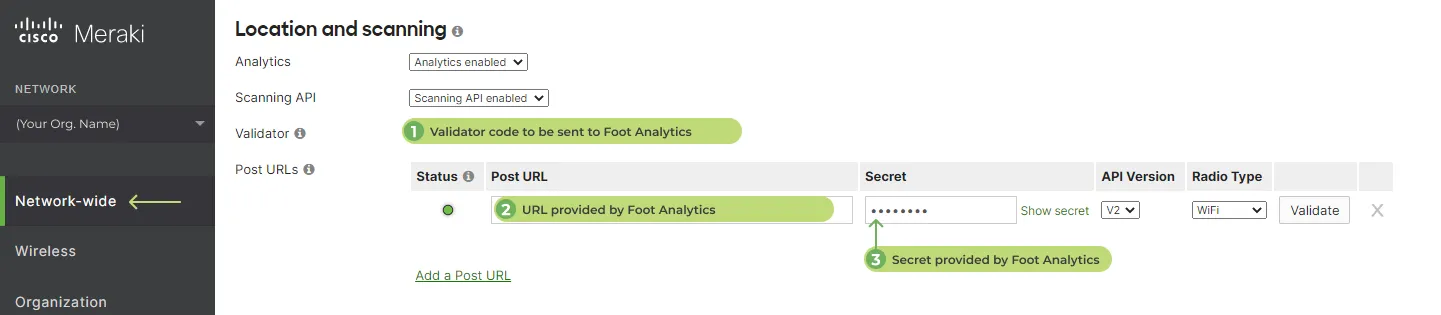
Steps to be performed on Cisco Meraki platform